

Start with your pet’s usual zones, not the center of the room
Place the camera where its actual view can show the area you need to observe: a resting spot, floor route or cat perch. Begin with a temporary stable position and inspect the app view before drilling or committing to a mount. A broad pan specification does not show you whether a shelf edge or sofa blocks the scene.
This procedure is based on manufacturer placement guidance and practical planning. We have not installed or tested these models in your home. Follow the exact product’s mounting and power instructions; there is no single mounting height suitable for every pet, room and treat mechanism.
Step 1: mark the view you need
Draw the room’s important pet zones, including elevated spots. Identify what can disappear behind furniture or through a doorway. Then compare those zones with the starting view and available pan/tilt movement. If two cats use separate rooms, note that as a real coverage gap instead of expecting tracking to see through walls.
Petcube Cam 360 placement guidance recommends pointing toward where pets spend time. Bites 2 Lite has different mounting options and a fixed view; use its model-specific manual rather than assuming a rotating camera’s advice transfers unchanged.
Step 2: choose a stable position and cable route
Keep the device stable and its power cable away from a pet’s regular path or jumping area. For a treat model, identify an open landing area and keep the intended dispenser opening clear. Follow the maker’s mounting instructions and use hardware suitable for that exact device.
For cat perches, check the lens from the cat’s actual locations as well as from standing height. Do not place the camera on the perch merely because it is closer. Leave your pet’s usual resting route accessible and reassess if the device attracts chewing, climbing or repeated knocks.
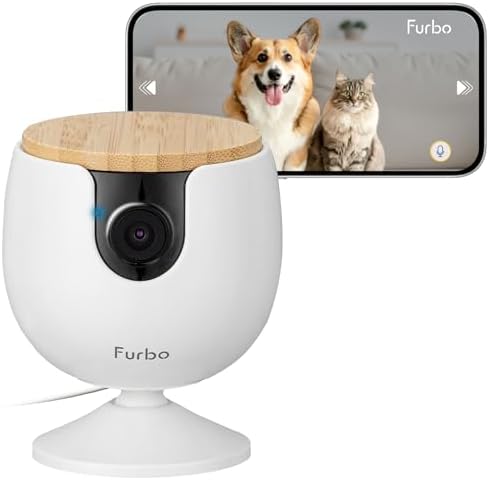
Furbo Mini — core-features package
Best for: A fixed second view that mounts on a wall without drilling.
- 1080p, 130° wide-angle lens, 4x digital zoom; no treat tossing
- wall mount and adhesive pad included
- video history needs a Furbo Nanny subscription
Step 3: check the exact WiFi and power requirements
Confirm the supported WiFi band before setup. A dual-band household network does not establish that every camera supports 5 GHz. The C220 US specifications and Wyze Pan v3 specifications list 2.4 GHz WiFi. Scout PLPC001 specifications list 2.4 and 5 GHz. These are exact-model facts, not brand-wide rules.
At the intended position, test the real live feed and app controls. Check again after any router or camera movement. Use the supplied or manufacturer-specified power arrangement. No general claim that a WiFi camera is battery powered should replace its power documentation.

TP-Link Tapo C220
Best for: Local recording to a memory card, with cloud storage optional.
- 2560 × 1440 video; pan/tilt with 360° pan coverage
- microSD slot up to 512 GB (card sold separately); Tapo Care cloud is a paid option
- 2.4 GHz WiFi only; privacy zones and pet detection

Wyze Cam Pan v3
Best for: Pan/tilt coverage with a physical privacy position and local card storage.
- 1080p; 360° pan and 180° tilt
- Privacy Mode points the lens down; microSD up to 256 GB
- 2.4 GHz WiFi only; powered by a 1.8 m USB cable (no battery)
Step 4: test away access and saved history separately
| Test | What to do | What success establishes |
|---|---|---|
| Live viewing | Turn phone WiFi off and open the app on cellular data | The tested remote-view path works now |
| Local recording | Record a short period and retrieve it using the chosen workflow | The selected recording/playback settings work |
| Cloud history | Find a recent event in the selected plan’s history | That tested history workflow works, not guaranteed future capture |
| Off-state | Enable privacy/off and inspect the result | The tested setting behaves as expected |
| Caregiver access | Use the recipient’s supported account / permissions | That recipient can perform the intended task |
A current successful test does not establish continuous future availability. Record the setup you tested and who can help if a feed disappears. Do not interpret the absence of an alert as proof that nothing happened.
Step 5: introduce sound and treats while you are home
Begin with live observation. If using audio, try a brief low-volume interaction while you can see the pet directly. Check whether the app uses push-to-talk or simultaneous audio. Stop and reassess if the pet avoids the device or seems disturbed; this guide makes no claim that hearing your voice treats anxiety.
For treats, follow the model’s loading, size and cleaning instructions. Test the toss direction in a clear area while present. Decide whether dispensing adds a useful interaction to this household rather than enabling it simply because the camera supports it.
Step 6: keep a real backup plan
A camera is an observation tool. It cannot restore power or internet, refill a bowl or provide in-person help. Before a longer absence, agree on a caregiver route if the feed fails or shows something that needs attention. Check that the person has the access needed to act, not merely permission to view.
Keep meal scheduling separate with the vacation cat feeder and backup guide. For app-controlled feeding, see WiFi cat feeders or WiFi dog feeders.
Before you rely on the setup
- The actual day and night views show the important pet zones.
- The camera and cable remain stable around the pet.
- Remote live viewing works through the intended phone connection.
- Any recording you require has been retrieved in a direct test.
- Sharing and privacy settings match the household’s needs.
- A person can help if the device or network fails.
Use FTC camera-security guidance for account, network and software checks. If treat dispensing is still your main buying decision, use the existing treat-camera comparison.
Return to the Pet Cameras hub for the overall buying framework.
For floor and perch views, use the cat-camera coverage guide. Before sharing the feed, review the privacy and account-access checklist.